Managing Pages
Map portal pages are the entry point to the maps for the user. Within map portal pages, several maps can be grouped into different categories. The maps appear on the portal page as tiles with a title and, optionally, an individual logo/thumbnail and description. The maps are created with the MapBuilder.
In addition to map viewer links, map portal pages can also contain links to WebGIS apps. These apps are created with the App Builder. Apps are prebuilt templates tailored for specific tasks. Via the AppBuilder, a template can be selected and extended with the necessary parameters (e.g. services). A simple redirect to another website can also be created via an app. This makes it possible to insert any links as a tile on a map portal page (see the AppBuilder documentation for this).
For the administrator/map author, the portal page looks roughly as follows:
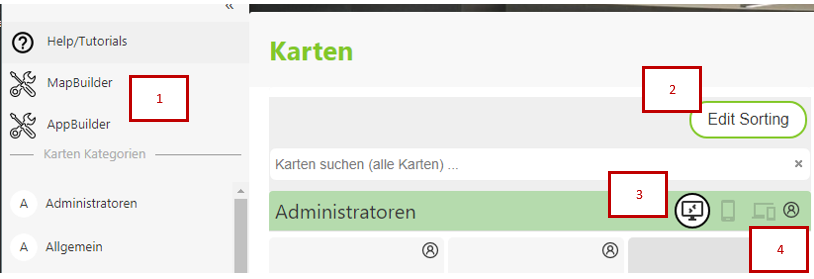
Here, the MapBuilder and the AppBuilder can be opened to create new maps or apps for this map portal page.
If maps (tiles) and categories have already been created, the
Edit Sortingbutton can be used to change the order of the maps and categories. For maps, simply drag the desired tile. The order of the categories is set via the sidebar (on the left).When publishing maps and apps, the preferred target platform for this application can be specified. Depending on which device (desktop, phone) the user uses to open the map portal page, only the corresponding tiles are shown. However, the current view can always be changed (also by the user). This is done with these buttons (desktop, mobile devices, hybrid). This icon is also shown in the individual tiles next to the map title.
Content within a map portal page can be further restricted. The permissions button can be used for this. It is available both for an entire category and for individual tiles. The user must pass through the entire permissions stack in order to be able to open a map: Portal page => Category => Map (tile). If one of these steps is denied, the tile is not visible to the user.