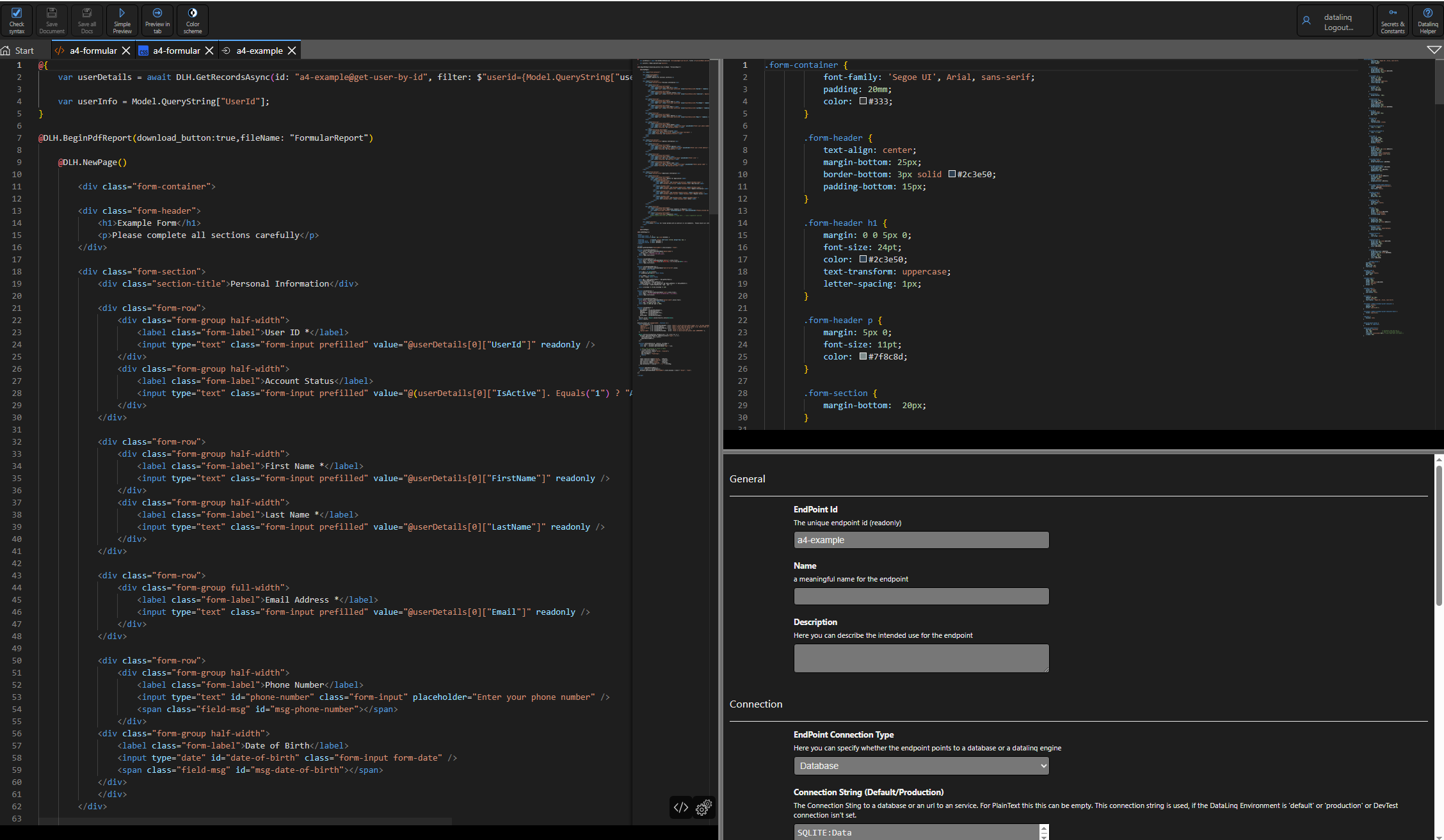
DataLinq.Code Interface
The user interface of DataLinq.Code offers an intuitive and powerful environment for managing endpoints, queries, and views. The individual areas and functions are explained in detail below.
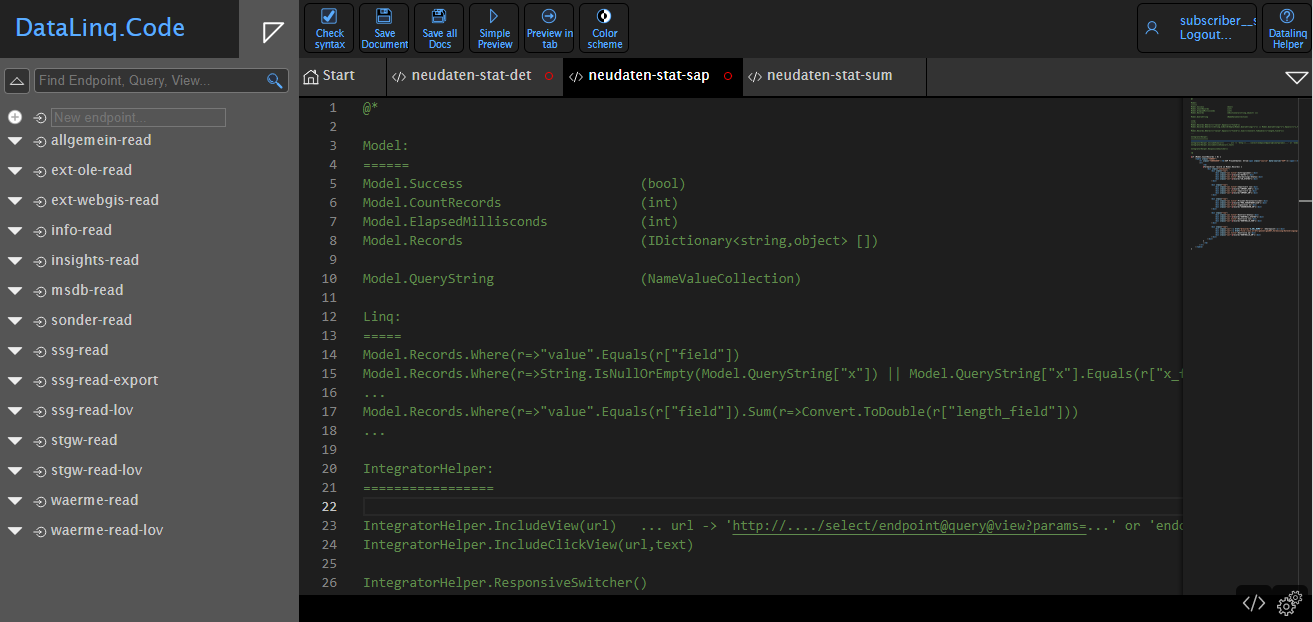
Home Page
When DataLinq.Code starts, the following elements appear:

Verify All Views - Checks all existing views for syntax errors and security-relevant keywords. - This step is especially recommended after updates, to detect errors early.
Sidebar
The sidebar enables efficient navigation and search for endpoints, queries, and views.
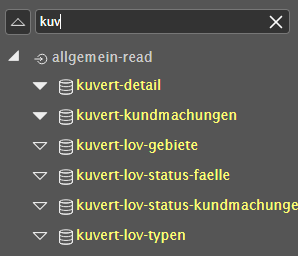
The search field can be used to find specific entries.
The up-arrow button can be used to fully collapse the expanded tree.

An expanded tree looks, for example, like this:
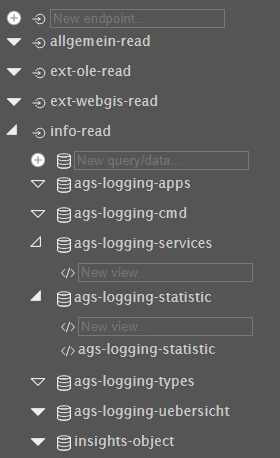
The fill of the triangles indicates whether further child elements exist.
This is especially helpful when searching for views.
Folders
A right-click on the icon activates folder mode.
While in folder mode:
Right-click saves and exits folder mode.
Left-click creates a new folder.
Left-clicking a new folder allows it to be renamed.
Right-clicking a folder deletes it.
Endpoints can be dragged into folders via drag and drop.
The folder structure is only shown once all endpoints are opened; otherwise, the old structure remains.
Creating a New Endpoint, Query, or View
Once the corresponding level is open, a new endpoint, query, or view can be created.
After entering the name, the associated code editor or settings open.
Deleting an Endpoint, Query, or View
To delete an endpoint, query, or view, it must first be opened.
The element can then be removed via the settings at the bottom using Delete.
Copying the Name of an Endpoint, Query, or View
When you hover the mouse over an element, a copy icon appears on the right.
Clicking it copies the name to the clipboard.
Tabs
The editor environment supports multiple open files at the same time.

A red ring indicates unsaved changes in the current tab.
If many tabs are open, a compact navigation view can be opened via the triangle on the right:
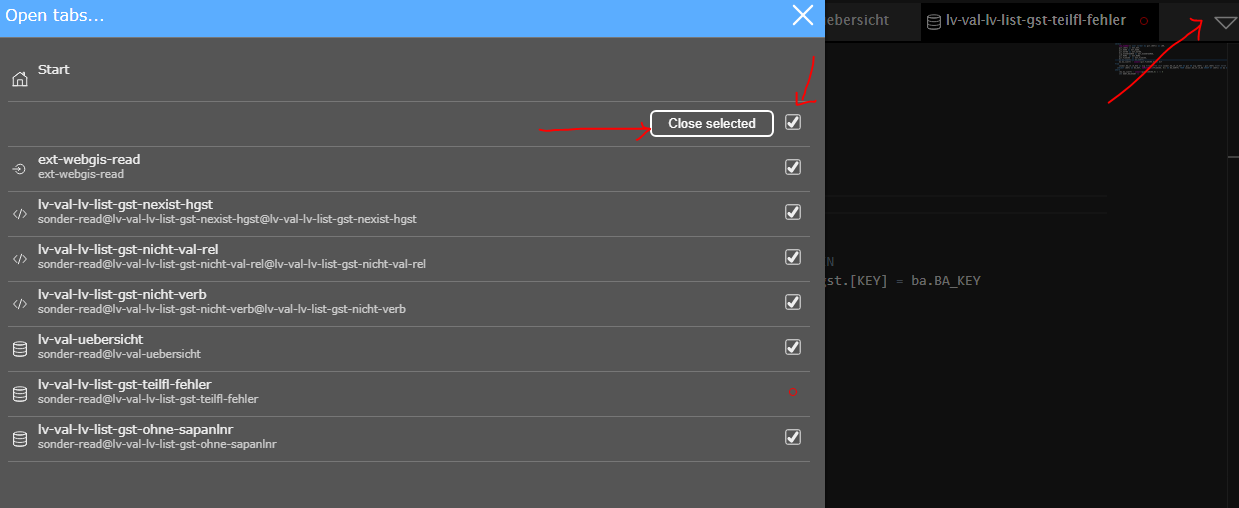
There, all open files can be managed and closed in a clear overview.
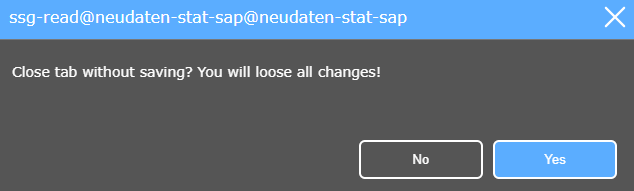
Before closing unsaved files, a confirmation is requested:
Toolbar
The toolbar contains several important functions:

Check syntax → checks for syntax errors
Save Document → saves the current document (Ctrl+S)
Save all Docs → saves all open files (Ctrl+Shift+S)
Simple Preview → preview in a pop-up (F5)
Preview in tab → preview in a new tab (Ctrl+F5)
Color scheme → enables/disables dark mode
Note: Before saving, it is automatically checked whether there are errors in a view. If problems are detected, corresponding error messages appear in the lower area of the editor.
Secrets & Constants
In the toolbar, the secrets manager opens via the icon.

– Here, secrets (stored encrypted) and constants can be defined.
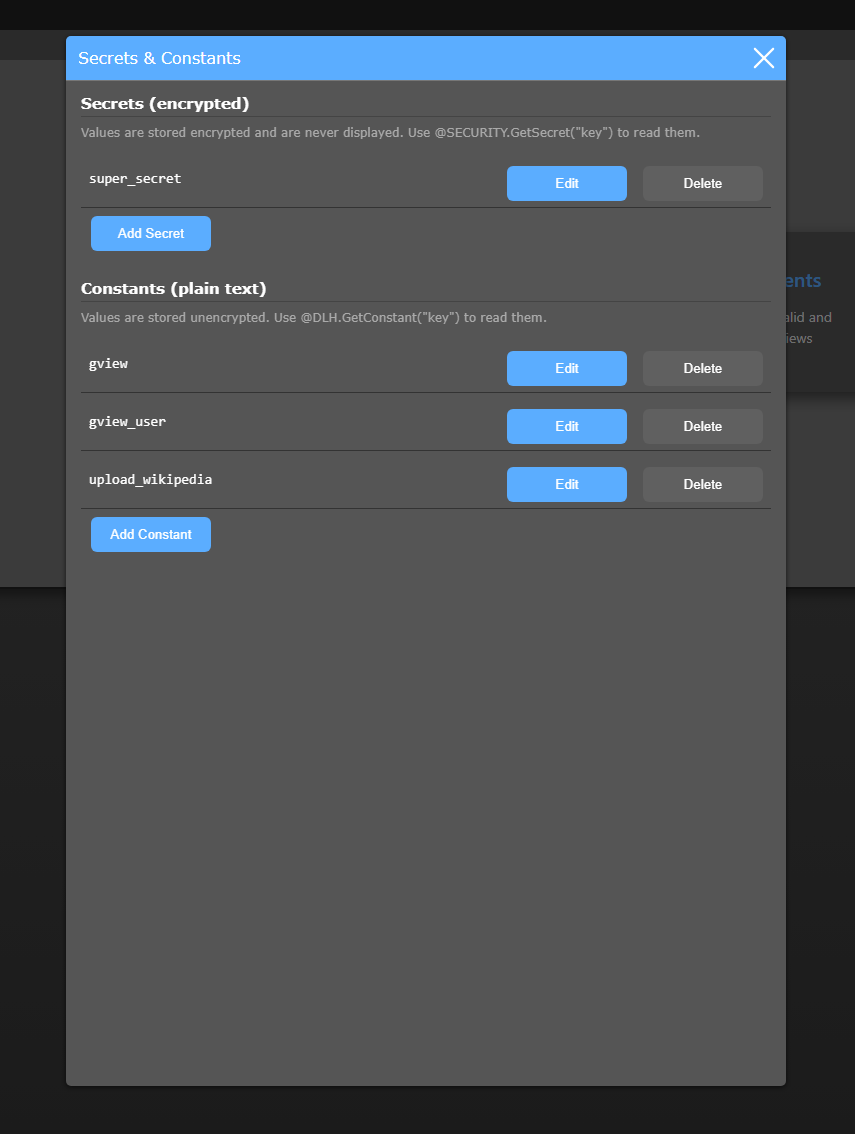
– These values can then be accessed in the code via a helper.
Toolbar (Top Right)

Log out → ends the current session
DataLinqHelper → shows a description of the DataLinqHelper functions
Editor
The editor enables editing code and settings.
The two buttons at the bottom right can be used to switch between code and settings.

Further details on configuring the settings can be found in the Parameterization chapter.
Split Screen
By holding down Shift and clicking on multiple endpoints/queries/views, it is possible to open up to 3 windows at the same time in split-screen mode.